Disclaimer: This post has been translated to English using a machine translation model. Please, let me know if you find any mistakes.
📚 **This post is part of the _Git Guide_ series**, divided into three chapters that should be read in order:
> * 👉 **Part 1: Local version control**
* Part 2: Branches
* Part 3: Remote repositories, stash, and tags
Introduction
Git is a version control software created by Linus Torvalds, who created it in order to have good version control when he developed the Linux kernel.
The Areas of git
Git has three areas, although a fourth can also be considered.
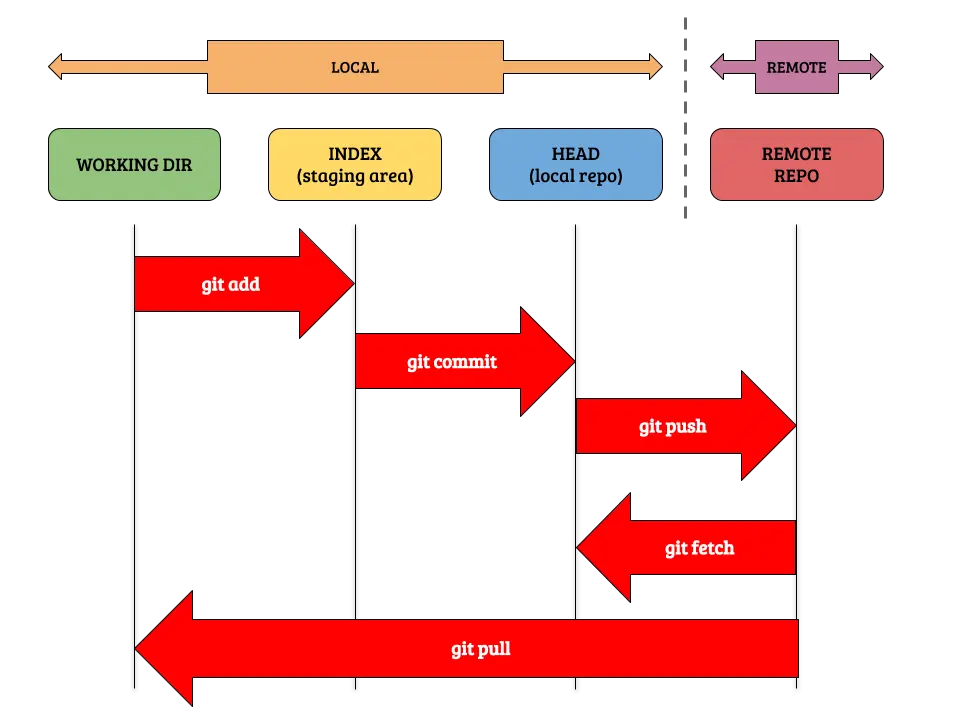
- The first is our workspace, it is where we have all our code. Here, when we modify or create a file, it becomes untracked, so we have to move it to the
stagedarea - The second area is
staged. Here, the files we had modified or created and that were not *tracked* become tracked, that is, Git starts tracking them. Here we will send the files to the nextheadarea - The third area is
head. In it, we have recorded a version of our code. In this way, by recording versions, we can go back to past versions if necessary. The recorded version of our code can be sent to a server so that it is accessible by several people - The three previous areas correspond to local work, but there is one more area, and it is the
remote server. What we do here is send the recorded version of our code to a server so that we can access the code from anywhere, or so that more people have access to it.
To make an analogy, it is like a scenario where you are going to take a photo. First you have your modified files, and the ones you want to immortalize you send to the staged area, that is, the staging area. At the moment you have sent all the files you consider, you take the photo, so you send all the files to the head area. In this way, you can keep taking many photos as the code evolves, so that you can have in a photo album the evolution of the code. Finally, you can upload that photo to a server so that it is accessible to more people, that is, you send them to the remote server area
Install git
In most Linux distributions, git is already installed; we can check it by running git --version
InputPython!git --versionCopied
git version 2.25.1
If you don't have it or want to update the git version, just run sudo apt update and then sudo apt install git
InputPython!sudo apt update && sudo apt install gitCopied
[sudo] password for maximo.fernandez@AEROESPACIAL.SENER:
We check the version again
InputPython!git --versionCopied
git version 2.25.1
In my case, I already had the latest version.
Initial configuration
Name and email configuration
Before starting to use git, it is advisable to make some basic configurations such as the username and email. This information will be displayed when showing who has made changes to the code. To do this, you need to run
git config --global user.name "<username>"
git config --global user.email "<email>"
In my case, I would include
git config --global user.name "MaximoFN"
git config --global user.email "maximofn@gmail.com
As you can see, the --global flag changes Git’s global configuration, but if in a specific repository you need to set different data, simply navigate to the repository and remove the --global flag from the previous commands.
git config user.name "<username>"
git config user.email "<email>"
Configure the default editor
When we later explain what commits are, we will see that one of the options may open a browser for us. By default, git will try to use vim, but since it is not a very easy editor to use, we can change it. Below is how to do it with some common editors
git config --global core.editor "code"  # vscode as editor
git config --global core.editor "atom"  # Atom as editor
git config --global core.editor "subl"  # Sublime Text as editor
git config --global core.editor "nano"  # Nano as editor
Check git configuration
To review the Git configuration, we can use git config --list
InputPython!git config --listCopied
user.name=maximofnuser.email=maximofn@gmail.comuser.user=maximofnhttp.sslverify=truecore.repositoryformatversion=0core.filemode=truecore.bare=falsecore.logallrefupdates=trueremote.origin.url=https://github.com/maximofn/portafolio.gitremote.origin.fetch=+refs/heads/*:refs/remotes/origin/*branch.main.remote=originbranch.main.merge=refs/heads/main
We can use the flags --global, --local and --system to see only the global, local (if it exists), and system (if it exists) configuration.
InputPython!git config --global --listCopied
user.name=maximofnuser.email=maximofn@gmail.comuser.user=maximofnhttp.sslverify=true
InputPython!git config --local --listCopied
core.repositoryformatversion=0core.filemode=truecore.bare=falsecore.logallrefupdates=trueremote.origin.url=https://github.com/maximofn/portafolio.gitremote.origin.fetch=+refs/heads/*:refs/remotes/origin/*branch.main.remote=originbranch.main.merge=refs/heads/main
InputPython!git config --system --listCopied
fatal: unable to read config file '/etc/gitconfig': No such file or directory
In my case, there is no system configuration.
If you want to know only the value of a configuration parameter, it is enough to enter git config <parameter>
InputPython!git config user.nameCopied
maximofn
Local Version Control
Initialize a new repository (git init)
There are two ways to initialize a new repository by doing
- One is by running
git init. This will create a new folder with the repository name - Another is by navigating to the folder where we want to create a repository and running
git init
I'm going to create a new repository
InputPython!git init notebook_gitCopied
Inicializado repositorio Git vacío en /home/wallabot/Documentos/web/portafolio/posts/notebook_git/.git/
If we now run ls, we will see that a new folder called notebook_git has been created
InputPython!ls | grep notebook_gitCopied
notebook_git
We move to it
InputPython!cd notebook_gitCopied
Now inside the folder we have two ways to know that the repository has been created, one by running ls -a, which will show all the files, and we will see that there is a folder called .git. The other way is by running git status, which will tell us the status of the repository
InputPython!cd notebook_git && ls -aCopied
. .. .git
InputPython!cd notebook_git && git statusCopied
En la rama masterNo hay commits todavíano hay nada para confirmar (crea/copia archivos y usa "git add" para hacerles seguimiento)
Since we are in a notebook, each cell has its path in the notebook path, which is why both times I had to use cd notebook_git &&, so that it changes to the folder with the repository we just created.
If I now try git status in another path where a repository has not been initialized, it will give us an error
InputPython!cd ~/ && git statusCopied
fatal: no es un repositorio git (ni ninguno de los directorios superiores): .git
Create new files
At the moment we have initialized a repository, we can start creating new files, so we create one and see what happens
InputPython!cd notebook_git && echo "print('Hello World')" > hello.pyCopied
If we now run git status again, we see that it appears to us
InputPython!cd notebook_git && git statusCopied
En la rama masterNo hay commits todavíaArchivos sin seguimiento:(usa "git add <archivo>..." para incluirlo a lo que se será confirmado)hello.pyno hay nada agregado al commit pero hay archivos sin seguimiento presentes (usa "git add" para hacerles seguimiento)
As you can see, it is now telling us that the hello.py file is untracked. In other words, we have to add hello.py to the staged area, which, as we remember, was like the stage where we would put everything that we would later take a snapshot of
Undo the creation of a new file
In this case, since these are files that Git is not yet tracking, that is, they are not yet in the staged area, we would have three ways to do it
- Deleting it simply: Since git is not yet tracking the file, we could do
rm hello.pyand that's it - Deleting it using a Git command: Previously we deleted it with
rm, but you may be on a system that does not have thermcommand. So, in that case, you can use the Git commandgit rm hello.py* Finally, we can usegit clean. This is useful, for example, when there are many new files, and thus, in a single command, we remove them all.
git clean
If we run git clean as is, it will give us an error
InputPython!cd notebook_git && git cleanCopied
fatal: clean.requireForce default en true y ninguno de -i, -n, ni -f entregado; rehusando el clean
It is telling us that one of these flags -n, -i, or -f needs to be added. We are also going to look at the -d flag.
-n(dry run): It will tell us which files are going to be deleted, but it will not delete them-i: It will ask us for each file that is going to be deleted*-f: Forces the deletion of files-d: It will also delete folders
Let's try it; first we run git clean -n to see which files would be deleted
InputPython!cd notebook_git && git clean -nCopied
Será borrado hello.py
Now we run git clean -f so that it deletes it, since we agree that it should be deleted
InputPython!cd notebook_git && git clean -fCopied
Borrando hello.py
As we can see, it has deleted hello.py
Add a file to the staging area (git add)
We create a file again
InputPython!cd notebook_git && echo "print('Hola mundo')" > hola.pyCopied
We run git status again to verify that we have the file
InputPython!cd notebook_git && git statusCopied
En la rama masterNo hay commits todavíaArchivos sin seguimiento:(usa "git add <archivo>..." para incluirlo a lo que se será confirmado)hola.pyno hay nada agregado al commit pero hay archivos sin seguimiento presentes (usa "git add" para hacerles seguimiento)
We see that we have the file hola.py, but git is not tracking it. We also see that it helps us by telling us to use "git add" to track them
The syntax is as follows git add <file>, but we can do it in several ways
- If we want to add more than one file, we can do it by putting all the files we want to add to the staged area, separated by a space:
git add - If we want to add all files of the same format, for example, if we want to add all Python files, we would use
git add *.py - If we want to add all the files in a folder
git add/ - If we want to add all the files, we have three ways:
git add --all,git add -Aorgit add .
Let's add the newly created file
InputPython!cd notebook_git && git add hola.pyCopied
We run git status to see what happened
InputPython!cd notebook_git && git statusCopied
En la rama masterNo hay commits todavíaCambios a ser confirmados:(usa "git rm --cached <archivo>..." para sacar del área de stage)nuevos archivos: hola.py
As we can see, it tells us that we have a new file being tracked and that it is pending confirmation hola.py
Remove a file from the staged area (git reset)
In case we add a file to the staged area and want to remove it, we have to use git reset <file>, let's see it
We create and add a new file to the staging area
InputPython!cd notebook_git && echo "print('Este no')" > adios.py && git add adios.pyCopied
We run git status to check that it is in the staging area
InputPython!cd notebook_git && git statusCopied
En la rama masterNo hay commits todavíaCambios a ser confirmados:(usa "git rm --cached <archivo>..." para sacar del área de stage)nuevos archivos: adios.pynuevos archivos: hola.py
As we can see, hola.py and adios.py are there, so we use git reset adios.py to remove it from the staging area
InputPython!cd notebook_git && git reset adios.pyCopied
We run a git status to check that it has appeared
InputPython!cd notebook_git && git statusCopied
En la rama masterNo hay commits todavíaCambios a ser confirmados:(usa "git rm --cached <archivo>..." para sacar del área de stage)nuevos archivos: hola.pyArchivos sin seguimiento:(usa "git add <archivo>..." para incluirlo a lo que se será confirmado)adios.py
We can see that adios.py is no longer tracked by git; it has been removed from the staging area
We run git clean -f to delete it
InputPython!cd notebook_git && git clean -f && git statusCopied
Borrando adios.pyEn la rama masterNo hay commits todavíaCambios a ser confirmados:(usa "git rm --cached <archivo>..." para sacar del área de stage)nuevos archivos: hola.py
Commit (git commit)
If we go back to the analogy in which we said that the staged area was the stage where we sent the files we wanted to take a photo of, now it’s time to take the photo to immortalize the current state. This is making a commit
In this way, the current state of the code is recorded, so that with each commit, a record of the code’s evolution is kept. Just like with a photo album, with each photo we keep a record of the evolution of what we place on the stage.
Since the code change is being recorded when making the commit, Git won’t let us make the commit unless we add at least a short comment. So there are two ways to make a commit.
git commitin this way will open the editor we have set in the git configuration. If we have not configured a default editor,viwill open. If we want to change the editor configuration, we can use, for example,git config --global core.editor "code"orgit config core.editor "code"to set VSCode as the default editor globally or locally.git commit -m "Commit message". In this way, we add the message directly
When making the commit in the first way, we can have a first line that will be the commit title and several more lines where it is explained in more detail. If we want to be able to do this with the -m flag, it will be enough to add several -m flags in a row: git commit -m "Título del commit" -m "Primera línea explicando más" -m "Segunda línea explicando más"
Once we have made the commit, this will save a record of the change in our repository locally. We still have not connected to a remote server.
Let's try making the commit
InputPython!cd notebook_git && git commit -m "Primer commit, hola.py"Copied
[master (commit-raíz) 1c95e4f] Primer commit, hola.py1 file changed, 1 insertion(+)create mode 100644 hola.py
We run a git status
InputPython!cd notebook_git && git statusCopied
En la rama masternada para hacer commit, el árbol de trabajo está limpio
We see that it tells us there is nothing new; we have our entire repository fully under control
Commit bypassing add (git commit -a -m or git commit -am)
In the case where we want to move all the files we have modified to the staged area and then commit them, we can do all of this in a single step using git commit -a -m "message", git commit --all -m "message" or git commit -am "message"
Note: This is only valid if a file is modified. If the file is new and git is not tracking it, this is not valid.
Let's see an example, let's modify hola.py
InputPython!cd notebook_git && echo "print('He añadido una nueva linea')" >> hola.pyCopied
Let's run a git status to make sure.
InputPython!cd notebook_git && git statusCopied
En la rama masterCambios no rastreados para el commit:(usa "git add <archivo>..." para actualizar lo que será confirmado)(usa "git restore <archivo>..." para descartar los cambios en el directorio de trabajo)modificados: hola.pysin cambios agregados al commit (usa "git add" y/o "git commit -a")
We can see that in Git’s own help it already suggests using git commit -a, so let’s do that
InputPython!cd notebook_git && git commit -am "Segundo commit, hola.py"Copied
[master 6e99e73] Segundo commit, hola.py1 file changed, 1 insertion(+)
We do a git status again
InputPython!cd notebook_git && git statusCopied
En la rama masternada para hacer commit, el árbol de trabajo está limpio
There is nothing to commit, the change has already been committed
Modify a file that had already been committed
As while we are developing we are modifying files, it may happen that we modify a file that we had already committed. In our case we are going to add a line to hola.py
InputPython!cd notebook_git && echo "print('He añadido una tercera linea')" >> hola.pyCopied
InputPython!cd notebook_git && cat hola.pyCopied
print('Hola mundo')print('He añadido una nueva linea')print('He añadido una tercera linea')
If we run git status, we'll see that hola.py has modifications
InputPython!cd notebook_git && git statusCopied
En la rama masterCambios no rastreados para el commit:(usa "git add <archivo>..." para actualizar lo que será confirmado)(usa "git restore <archivo>..." para descartar los cambios en el directorio de trabajo)modificados: hola.pysin cambios agregados al commit (usa "git add" y/o "git commit -a")
View changes in a file (git diff <file>)
It may be that we have been developing for a while since the last commit and we do not know what changes we have made; for this we use git diff <archivo> which will tell us the changes we have made
InputPython!cd notebook_git && git diff hola.pyCopied
diff --git a/hola.py b/hola.pyindex 91dee80..fba0d22 100644--- a/hola.py+++ b/hola.py@@ -1,2 +1,3 @@print('Hola mundo')print('He añadido una nueva linea')+print('He añadido una tercera linea')
Although it is not very intuitive, we can see that we have added the last line in hola.py
Undo changes in a file (git restore <file>)
If we don’t like the changes we’ve made and want to remove them, what we can do is git restore <archivo>
InputPython!cd notebook_git && git restore hola.pyCopied
Let's see what has happened with a git status
InputPython!cd notebook_git && git statusCopied
En la rama masternada para hacer commit, el árbol de trabajo está limpio
We see that the changes in hola.py have been discarded since the last commit
Change history (git log)
With Git, we can see the history of all the changes we have been committing; for that, we use git log. It is as if we were going through our photo album.
InputPython!cd notebook_git && git logCopied
commit 6e99e73cf0c5474078cc9f328ee6a54fb9ffb169 (HEAD -> master)Author: maximofn <maximofn@gmail.com>Date: Sun Apr 16 02:29:04 2023 +0200Segundo commit, hola.pycommit 1c95e4fd8388ceedee368e0121c4b0ef4900c2acAuthor: maximofn <maximofn@gmail.com>Date: Sun Apr 16 02:28:44 2023 +0200Primer commit, hola.py
We can see the change history; it must be read from bottom to top.
First, we look at the commit with the message Primer commit, hola.py, we can see the date, the author, and the hash, which is its unique identifier
Below we can see the second commit with the message Segundo commit, hola.py, along with its date, author, and hash. It also shows where HEAD is and which branch we are on.
If we use flags, we can obtain the information in different ways, but depending on which flags we use, one option may suit us better. Below are some useful flags:
git log --oneline: Displays commits on a single line, with the abbreviated hash and the commit message.git log --graph: Displays a text graph of the repository history, including branches and merges.git log --decorate: Shows the references (branches, tags, HEAD, etc.) in the log together with the commit they point to.git log --author=": Filters the commit history to show only those made by a specific author." git log --since=": Shows the commits made since a specific date. You can use different date formats, such as "1 week ago" or "2023-01-01"." git log --until=": Shows the commits made up to a specific date." git log: Shows the commits of a specific branch.*git log: Shows the commits that are in the range between two specific commits... git log --grep=": Searches commit messages for a specific word or phrase." git log -p: Shows the differences (in patch form) introduced in each commit.git log -n: Displays the last number of commits. For example,git log -n 5will show the last 5 commits.git log --stat: Shows file change statistics for each commit, such as the number of lines added and removed.
For example, a convenient way to view the history is to use git log --graph --oneline --decorate
InputPython!cd notebook_git && git log --graph --oneline --decorateCopied
* 6e99e73 (HEAD -> master) Segundo commit, hola.py* 1c95e4f Primer commit, hola.py
We can see that instead of giving us the entire hash, it gives us only a few numbers; this is because, for now, the repository has so little history that those few numbers are enough. If we wanted to go back to the previous point, instead of entering the entire hash (7c448f69e30ab1b5783f5cf9ee3ae5bc362ecd4d), entering only 7c448f6 would be enough.
Later we will talk about branches, but now let's see what HEAD is
HEAD
While we were developing, we were able to make changes and commit them; that is, we have been filling out the photo album of our code. HEAD is the position in the album where we are.
Normally it is the last position of all commits.
If we want to know where we are, we can do so with git rev-parse HEAD
InputPython!cd notebook_git && git rev-parse HEADCopied
6e99e73cf0c5474078cc9f328ee6a54fb9ffb169
As can be seen, the obtained hash matches the last one obtained when running git log
InputPython!cd notebook_git && git logCopied
commit 6e99e73cf0c5474078cc9f328ee6a54fb9ffb169 (HEAD -> master)Author: maximofn <maximofn@gmail.com>Date: Sun Apr 16 02:29:04 2023 +0200Segundo commit, hola.pycommit 1c95e4fd8388ceedee368e0121c4b0ef4900c2acAuthor: maximofn <maximofn@gmail.com>Date: Sun Apr 16 02:28:44 2023 +0200Primer commit, hola.py
Modify a commit (git commit --amend)
We may want to modify a commit, either because we want to change the message, or because we want to add more files to the commit, so we will see both cases
Modify the commit message
If you only want to modify the message, what we need to do is git commit --amend -m "New message", let's see an example, let's modify hola.py
InputPython!cd notebook_git && echo "print('Esta es la tercera linea')" >> hola.pyCopied
We run git status
InputPython!cd notebook_git && git statusCopied
En la rama masterCambios no rastreados para el commit:(usa "git add <archivo>..." para actualizar lo que será confirmado)(usa "git restore <archivo>..." para descartar los cambios en el directorio de trabajo)modificados: hola.pysin cambios agregados al commit (usa "git add" y/o "git commit -a")
Indeed, we see that hola.py has modifications, so we make a commit with these changes
InputPython!cd notebook_git && git commit -am "Tercer commot, hola.py"Copied
[master 60e2ffd] Tercer commot, hola.py1 file changed, 1 insertion(+)
Let's look at the commit history
InputPython!cd notebook_git && git log --graph --oneline --decorateCopied
* 60e2ffd (HEAD -> master) Tercer commot, hola.py* 6e99e73 Segundo commit, hola.py* 1c95e4f Primer commit, hola.py
**Oh no!** we wrote commot instead of commit, so let's modify the message
InputPython!cd notebook_git && git commit --amend -m "Tercer commit, hola.py"Copied
[master c4930d7] Tercer commit, hola.pyDate: Sun Apr 16 02:29:59 2023 +02001 file changed, 1 insertion(+)
Let's view the history again
InputPython!cd notebook_git && git log --graph --oneline --decorateCopied
* c4930d7 (HEAD -> master) Tercer commit, hola.py* 6e99e73 Segundo commit, hola.py* 1c95e4f Primer commit, hola.py
We see that it is now fine
Add files to the last commit
Suppose we forgot to add a file to the last commit; we simply do a git add with that file and run git commit --amend -m "message"
Let's create two new files
InputPython!cd notebook_git && echo "print('Este es el archivo 1')" > archivo1.pyCopied
InputPython!cd notebook_git && echo "print('Este es el archivo 2')" > archivo2.pyCopied
Now we make a commit of only one
InputPython!cd notebook_git && git add archivo1.py && git commit -m "Commit con el archivo 1"Copied
[master 285b243] Commit con el archivo 11 file changed, 1 insertion(+)create mode 100644 archivo1.py
InputPython!cd notebook_git && git statusCopied
En la rama masterArchivos sin seguimiento:(usa "git add <archivo>..." para incluirlo a lo que se será confirmado)archivo2.pyno hay nada agregado al commit pero hay archivos sin seguimiento presentes (usa "git add" para hacerles seguimiento)
InputPython!cd notebook_git && git log --graph --oneline --decorateCopied
* 285b243 (HEAD -> master) Commit con el archivo 1* c4930d7 Tercer commit, hola.py* 6e99e73 Segundo commit, hola.py* 1c95e4f Primer commit, hola.py
As we can see, we left out file 2, so we modify the commit and add file 2
InputPython!cd notebook_git && git add archivo2.pyCopied
InputPython!cd notebook_git && git commit --amend -m "Commit con los archivos 1 y 2"Copied
[master 04ebd1f] Commit con los archivos 1 y 2Date: Sun Apr 16 02:30:26 2023 +02002 files changed, 2 insertions(+)create mode 100644 archivo1.pycreate mode 100644 archivo2.py
InputPython!cd notebook_git && git statusCopied
En la rama masternada para hacer commit, el árbol de trabajo está limpio
InputPython!cd notebook_git && git log --graph --oneline --decorateCopied
* 04ebd1f (HEAD -> master) Commit con los archivos 1 y 2* c4930d7 Tercer commit, hola.py* 6e99e73 Segundo commit, hola.py* 1c95e4f Primer commit, hola.py
Now the latest commit has the two new files
Undo a commit (git reset HEAD~1)
With this command, we tell Git to move back one position in the commit history. There are two options: --soft, which will not delete the changes we have made, and --hard, which will.
Undoing a commit while keeping the changes (git reset --soft HEAD~1)
Let's create a new file
InputPython!cd notebook_git && echo "print('Este es el archivo 3')" > archivo3.pyCopied
We do a git status
InputPython!cd notebook_git && git statusCopied
En la rama masterArchivos sin seguimiento:(usa "git add <archivo>..." para incluirlo a lo que se será confirmado)archivo3.pyno hay nada agregado al commit pero hay archivos sin seguimiento presentes (usa "git add" para hacerles seguimiento)
We make a commit adding this file
InputPython!cd notebook_git && git add archivo3.py && git commit -m "Commit con el archivos 3"Copied
[master 6dc7be6] Commit con el archivos 31 file changed, 1 insertion(+)create mode 100644 archivo3.py
InputPython!cd notebook_git && git log --graph --oneline --decorateCopied
* 6dc7be6 (HEAD -> master) Commit con el archivos 3* 04ebd1f Commit con los archivos 1 y 2* c4930d7 Tercer commit, hola.py* 6e99e73 Segundo commit, hola.py* 1c95e4f Primer commit, hola.py
We see that in the last commit archivo3.py is present; we are going to remove the commit while keeping archivo3.py
InputPython!cd notebook_git && git reset --soft HEAD~1Copied
Let's now do a git log to see whether the last commit has been deleted.
InputPython!cd notebook_git && git log --graph --oneline --decorateCopied
* 04ebd1f (HEAD -> master) Commit con los archivos 1 y 2* c4930d7 Tercer commit, hola.py* 6e99e73 Segundo commit, hola.py* 1c95e4f Primer commit, hola.py
Indeed, we see that the last commit has been removed.
We run a git status to see if archivo3.py has been preserved
InputPython!cd notebook_git && git statusCopied
En la rama masterCambios a ser confirmados:(usa "git restore --staged <archivo>..." para sacar del área de stage)nuevos archivos: archivo3.py
It has been maintained
Undo a commit by discarding the changes (git reset --hard HEAD~1)
We have archivo3.py, which we have created and have in the staging area
InputPython!cd notebook_git && git statusCopied
En la rama masterCambios a ser confirmados:(usa "git restore --staged <archivo>..." para sacar del área de stage)nuevos archivos: archivo3.py
Therefore, we make a commit
InputPython!cd notebook_git && git commit -m "Commit con el archivo 3"Copied
[master 0147d65] Commit con el archivo 31 file changed, 1 insertion(+)create mode 100644 archivo3.py
We run a git log to check that there is a commit with this file
InputPython!cd notebook_git && git log --graph --oneline --decorateCopied
* 0147d65 (HEAD -> master) Commit con el archivo 3* 04ebd1f Commit con los archivos 1 y 2* c4930d7 Tercer commit, hola.py* 6e99e73 Segundo commit, hola.py* 1c95e4f Primer commit, hola.py
Indeed, there is a commit adding archivo3.py. Now we remove this commit by discarding archivo3.py
InputPython!cd notebook_git && git reset --hard HEAD~1Copied
HEAD está ahora en 04ebd1f Commit con los archivos 1 y 2
We run a git log to verify that the last commit has been removed
InputPython!cd notebook_git && git log --graph --oneline --decorateCopied
* 04ebd1f (HEAD -> master) Commit con los archivos 1 y 2* c4930d7 Tercer commit, hola.py* 6e99e73 Segundo commit, hola.py* 1c95e4f Primer commit, hola.py
The commit containing archivo3.py has been removed; now we run a git status to check what happened to archivo3.py
InputPython!cd notebook_git && git statusCopied
En la rama masternada para hacer commit, el árbol de trabajo está limpio
archivo3.py does not appear as a file that needs to be committed; let's see if it has indeed been deleted completely
InputPython!cd notebook_git && ls | grep archivo3Copied
archivo3.py has indeed been removed from the file system
Modify a remote commit (git push --force)
Although later on we will see how to synchronize with remote repositories, if you have made a commit, pushed it to a remote repository (git push), and modified the commit locally (because you changed the message or reverted the commit), to revert the changes in the remote repository you have to do git push --force
**Warning**: This command modifies the remote repository history, so it may affect other people who are working on that repository. Use this command with great care and confidence. It is better to have a commit history in which first there is the commit where you entered the description incorrectly and then the new commit with the correct description, than to keep modifying the history.
Modify a remote commit (git push --force-with-lease)
If you're convinced to rewrite the history, at least use git push --force-with-lease, which won't modify commits that may have been added later
Ignore files (.gitignore)
Suppose we have a file with API keys; we actually do not want this file to be saved in the repository, because if we later share this repository, anyone would have access to these keys, so we need to tell git not to track this file
This is done with the .gitignore file; in it, you add the path of the files or directories that you do not want Git to track
Let's see it
We created the file with the keys
InputPython!cd notebook_git && touch api_keys.pyCopied
If we run git status, we can see that Git recognizes it
InputPython!cd notebook_git && git statusCopied
En la rama masterArchivos sin seguimiento:(usa "git add <archivo>..." para incluirlo a lo que se será confirmado)api_keys.pyno hay nada agregado al commit pero hay archivos sin seguimiento presentes (usa "git add" para hacerles seguimiento)
If we do nothing, one day we might run a git add . and add it to the repository, so for safety we need to tell git not to keep tracking this file. To do that, we create the .gitignore by adding this file
InputPython!cd notebook_git && echo "api_keys.py" >> .gitignoreCopied
Let's see what happens if we now run git status
InputPython!cd notebook_git && git statusCopied
En la rama masterArchivos sin seguimiento:(usa "git add <archivo>..." para incluirlo a lo que se será confirmado).gitignoreno hay nada agregado al commit pero hay archivos sin seguimiento presentes (usa "git add" para hacerles seguimiento)
We see that git has stopped tracking api_keys.py, but it is tracking .gitignore, so we make a commit to add .gitignore
InputPython!cd notebook_git && git add .gitignore && git commit -m "Añadido .gitignore"Copied
[master 0b09cfa] Añadido .gitignore1 file changed, 1 insertion(+)create mode 100644 .gitignore
Which files should be added to .gitignore?
- Files that contain credentials or API keys (you shouldn't upload them to the repository; simply inject them via environment variables)
- Your editor's configuration folders (
/.vscode) - Log files
- System files like
.DS_Store* Folders generated with static files or builds such as/distor/build - Dependencies that can be downloaded (
/node_modules) - Testing coverage (
/coverage)
How do I always ignore the same files?
If, for example, your IDE always generates the same configuration files, it would be good to be able to tell Git to always ignore those files; for that, we create a global .gitignore
InputPython!touch ~/.gitignore_globalCopied
In my case, I’m going to add the __pycache__/ directory
InputPython!echo "__pycache__/" >> ~/.gitignore_globalCopied
Now we need to tell Git that this is our global .gitignore
InputPython!git config --global core.excludesfile ~/.gitignore_globalCopied
Done, from now on the __pycache__/ directory will always be ignored
GitHub has a repository with .gitignores for many languages, I have used this one as a guide for Python
Delete a file from a commit
Let's see how to remove a file from a commit we've made. First, we create two files and commit them.
InputPython!cd notebook_git && echo "print('Este es el archivo 4')" > archivo4.pyCopied
InputPython!cd notebook_git && echo "print('Este es el archivo 5')" > archivo5.pyCopied
We make a commit with both files
InputPython!cd notebook_git && git add archivo4.py archivo5.py && git commit -m "Commit con los archivos 4 y 5"Copied
[master e3153a5] Commit con los archivos 4 y 52 files changed, 2 insertions(+)create mode 100644 archivo4.pycreate mode 100644 archivo5.py
InputPython!cd notebook_git && git log --graph --oneline --decorateCopied
* e3153a5 (HEAD -> master) Commit con los archivos 4 y 5* 0b09cfa Añadido .gitignore* 04ebd1f Commit con los archivos 1 y 2* c4930d7 Tercer commit, hola.py* 6e99e73 Segundo commit, hola.py* 1c95e4f Primer commit, hola.py
From here, there are two options to remove a file from a commit:
- Remove the file and create a new commit* Undo the commit and recreate it without the file
Delete the file and create a new commit
Suppose we want to delete the archivo5.py file; we delete it with git rm archivo5.py
InputPython!cd notebook_git && git rm archivo5.pyCopied
rm 'archivo5.py'
Let's run a git status to see what happens
InputPython!cd notebook_git && git statusCopied
En la rama masterCambios a ser confirmados:(usa "git restore --staged <archivo>..." para sacar del área de stage)borrados: archivo5.py
As we can see, archivo5.py has been deleted. Now we create a new commit
InputPython!cd notebook_git && git commit -m "Eliminado archivo5.py"Copied
[master ea615a9] Eliminado archivo5.py1 file changed, 1 deletion(-)delete mode 100644 archivo5.py
InputPython!cd notebook_git && git log --graph --oneline --decorateCopied
* ea615a9 (HEAD -> master) Eliminado archivo5.py* e3153a5 Commit con los archivos 4 y 5* 0b09cfa Añadido .gitignore* 04ebd1f Commit con los archivos 1 y 2* c4930d7 Tercer commit, hola.py* 6e99e73 Segundo commit, hola.py* 1c95e4f Primer commit, hola.py
Undo the commit and recreate it without the file
We go back to creating two files and making a commit
InputPython!cd notebook_git && echo "print('Este es el archivo 6')" > archivo6.py && echo "print('Este es el archivo 7')" > archivo7.pyCopied
InputPython!cd notebook_git && git statusCopied
En la rama masterArchivos sin seguimiento:(usa "git add <archivo>..." para incluirlo a lo que se será confirmado)archivo6.pyarchivo7.pyno hay nada agregado al commit pero hay archivos sin seguimiento presentes (usa "git add" para hacerles seguimiento)
InputPython!cd notebook_git && git add archivo6.py archivo7.py && git commit -m "Commit con los archivos 6 y 7"Copied
[master d6dc485] Commit con los archivos 6 y 72 files changed, 2 insertions(+)create mode 100644 archivo6.pycreate mode 100644 archivo7.py
InputPython!cd notebook_git && git log --graph --oneline --decorateCopied
* d6dc485 (HEAD -> master) Commit con los archivos 6 y 7* ea615a9 Eliminado archivo5.py* e3153a5 Commit con los archivos 4 y 5* 0b09cfa Añadido .gitignore* 04ebd1f Commit con los archivos 1 y 2* c4930d7 Tercer commit, hola.py* 6e99e73 Segundo commit, hola.py* 1c95e4f Primer commit, hola.py
First, we undo the last commit with git reset --soft HEAD~1
InputPython!cd notebook_git && git reset --soft HEAD~1Copied
We run a git status to see what has happened
InputPython!cd notebook_git && git statusCopied
En la rama masterCambios a ser confirmados:(usa "git restore --staged <archivo>..." para sacar del área de stage)nuevos archivos: archivo6.pynuevos archivos: archivo7.py
We see that I have undone the commit, but that both files are in the staged area, so to remove one of the files from the commit, first it must be taken out of the staged area; to do this, we run git reset archivo6.py
InputPython!cd notebook_git && git reset archivo6.pyCopied
We run git status again
InputPython!cd notebook_git && git statusCopied
En la rama masterCambios a ser confirmados:(usa "git restore --staged <archivo>..." para sacar del área de stage)nuevos archivos: archivo7.pyArchivos sin seguimiento:(usa "git add <archivo>..." para incluirlo a lo que se será confirmado)archivo6.py
We see that archivo7.py is in the staged area, while archivo6.py is no longer there. Now we can delete file 6; to do so, we use git clean
InputPython!cd notebook_git && git clean -nCopied
Será borrado archivo6.py
InputPython!cd notebook_git && git clean -fCopied
Borrando archivo6.py
We do a git status again
InputPython!cd notebook_git && git statusCopied
En la rama masterCambios a ser confirmados:(usa "git restore --staged <archivo>..." para sacar del área de stage)nuevos archivos: archivo7.py
As we see, archivo.py is no longer there, so we can make a new commit
InputPython!cd notebook_git && git commit -m "Commit con el archivo 7"Copied
[master 4bb9d75] Commit con el archivo 71 file changed, 1 insertion(+)create mode 100644 archivo7.py
InputPython!cd notebook_git && git log --graph --oneline --decorateCopied
* 4bb9d75 (HEAD -> master) Commit con el archivo 7* ea615a9 Eliminado archivo5.py* e3153a5 Commit con los archivos 4 y 5* 0b09cfa Añadido .gitignore* 04ebd1f Commit con los archivos 1 y 2* c4930d7 Tercer commit, hola.py* 6e99e73 Segundo commit, hola.py* 1c95e4f Primer commit, hola.py
We have removed the last commit and overwritten it with a new one, deleting the file we wanted
File change history (git log <file>)
Although we have already seen how we could view the repository history with git log, we may not be interested in the history of the entire repository. We may have a bug in a code file that we did not initially have, so it is possible that we want to see only the history of that file; for that, we use git log <archivo>
First, let's look at the files we have
InputPython!cd notebook_git && lsCopied
api_keys.py archivo1.py archivo2.py archivo4.py archivo7.py hola.py
Suppose we only want to see the changes in hola.py, so we run git log hola.py
InputPython!cd notebook_git && git log --graph --oneline --decorate hola.pyCopied
* c4930d7 Tercer commit, hola.py* 6e99e73 Segundo commit, hola.py* 1c95e4f Primer commit, hola.py
We can see that many fewer results appear than if we had done git log
InputPython!cd notebook_git && git log --graph --oneline --decorateCopied
* 4bb9d75 (HEAD -> master) Commit con el archivo 7* ea615a9 Eliminado archivo5.py* e3153a5 Commit con los archivos 4 y 5* 0b09cfa Añadido .gitignore* 04ebd1f Commit con los archivos 1 y 2* c4930d7 Tercer commit, hola.py* 6e99e73 Segundo commit, hola.py* 1c95e4f Primer commit, hola.py
View changes to a file at a specific point in history (git show <hash> <file> or git diff <file>)
Suppose we already know at what point a change was made in the file that contains a bug, so now we want to know what changes were made to understand what may be causing the bug. To do this, we can use git show <hash> <archivo>
Let's see what changes were made in hola.py in hash c4930d7, that is, when the third commit was made
InputPython!cd notebook_git && git show c4930d7 hola.pyCopied
commit c4930d7267c3f8df389ab0cb1bda0b5fceabb5c2Author: maximofn <maximofn@gmail.com>Date: Sun Apr 16 02:29:59 2023 +0200Tercer commit, hola.pydiff --git a/hola.py b/hola.pyindex 91dee80..33bdb99 100644--- a/hola.py+++ b/hola.py@@ -1,2 +1,3 @@print('Hola mundo')print('He añadido una nueva linea')+print('Esta es la tercera linea')
The way to view changes in git is not very intuitive, but we can see that the line print('Esta es la tercera línea') has been added
Another way to view changes is with git diff, we have two options, we can see the changes in the file at the current moment compared to a specific point in history, for that we use git diff <hash> <file.
For example, if we want to see the changes in hola.py from when the first commit was made (hash 1c95e4f) to the current state, we need to enter (git diff 1c95e4f hola.py)
InputPython!cd notebook_git && git diff 1c95e4f hola.pyCopied
diff --git a/hola.py b/hola.pyindex f140969..33bdb99 100644--- a/hola.py+++ b/hola.py@@ -1 +1,3 @@print('Hola mundo')+print('He añadido una nueva linea')+print('Esta es la tercera linea')
But if what we want is to see the difference between a specific point in history and another specific point, we need to enter the hashes of the two moments, that is git diff <hash1> <hash2> <archivo>
If we want to see the changes in hola.py between the second commit (hash 6e99e73) and the first commit (hash 1c95e4f), we would need to enter git diff 1c95e4f 6e99e73 hola.py
InputPython!cd notebook_git && git diff 1c95e4f 6e99e73 hola.pyCopied
diff --git a/hola.py b/hola.pyindex f140969..91dee80 100644--- a/hola.py+++ b/hola.py@@ -1 +1,2 @@print('Hola mundo')+print('He añadido una nueva linea')
The above shows us the changes from the second commit with respect to the first, but if what we want is the changes from the first commit with respect to the second, we only need to reverse the hashes from how we have written them, that is git diff 6e99e73 1c95e4f hola.py
InputPython!cd notebook_git && git diff 6e99e73 1c95e4f hola.pyCopied
diff --git a/hola.py b/hola.pyindex 91dee80..f140969 100644--- a/hola.py+++ b/hola.py@@ -1,2 +1 @@print('Hola mundo')-print('He añadido una nueva linea')
Travel to the past (git reset --hard <hash> or git reset --soft <hash>)
Let’s imagine that we have found that everything we did after generating the bug is no longer useful and we need to work again from that point. We can return to a position in the history using git reset --hard <hash> (this will not keep the changes) or git reset --soft <hash> (this will keep the changes)
First, let’s look at the history
InputPython!cd notebook_git && git log --graph --oneline --decorateCopied
* 4bb9d75 (HEAD -> master) Commit con el archivo 7* ea615a9 Eliminado archivo5.py* e3153a5 Commit con los archivos 4 y 5* 0b09cfa Añadido .gitignore* 04ebd1f Commit con los archivos 1 y 2* c4930d7 Tercer commit, hola.py* 6e99e73 Segundo commit, hola.py* 1c95e4f Primer commit, hola.py
Suppose we want to go to the moment when we made the third commit (hash c4930d7); moreover, we do it without keeping the changes, that is, all the modifications we made afterward will be deleted. We do git reset --hard c4930d7
First, we run ls to see the files we have now
InputPython!cd notebook_git && lsCopied
api_keys.py archivo1.py archivo2.py archivo4.py archivo7.py hola.py
Let's go to the third commit
InputPython!cd notebook_git && git reset --hard c4930d7Copied
HEAD está ahora en c4930d7 Tercer commit, hola.py
If we run ls, we will see that we no longer have archivo1.py, archivo2.py, archivo4.py, or archivo7.py
InputPython!cd notebook_git && lsCopied
api_keys.py hola.py
Back to the Future (git reflog)
Suppose we have had second thoughts and want to go back to where we were, to the last point in history, one way would be to run git reset --hard <hash> again. But imagine that we do not know the hash, because we did not run git log before and if we do it now it only gives us information about the history up to the third commit
InputPython!cd notebook_git && git log --graph --oneline --decorateCopied
* c4930d7 (HEAD -> master) Tercer commit, hola.py* 6e99e73 Segundo commit, hola.py* 1c95e4f Primer commit, hola.py
Here what we can do is git reflog, which will give us a history including the jumps
InputPython!cd notebook_git && git reflogCopied
c4930d7 (HEAD -> master) HEAD@{0}: reset: moving to c4930d74bb9d75 HEAD@{1}: commit: Commit con el archivo 7ea615a9 HEAD@{2}: reset: moving to HEAD~1d6dc485 HEAD@{3}: commit: Commit con los archivos 6 y 7ea615a9 HEAD@{4}: commit: Eliminado archivo5.pye3153a5 HEAD@{5}: commit: Commit con los archivos 4 y 50b09cfa HEAD@{6}: commit: Añadido .gitignore04ebd1f HEAD@{7}: reset: moving to HEAD~10147d65 HEAD@{8}: commit: Commit con el archivo 304ebd1f HEAD@{9}: reset: moving to HEAD~16dc7be6 HEAD@{10}: commit: Commit con el archivos 304ebd1f HEAD@{11}: commit (amend): Commit con los archivos 1 y 2285b243 HEAD@{12}: commit: Commit con el archivo 1c4930d7 (HEAD -> master) HEAD@{13}: commit (amend): Tercer commit, hola.py60e2ffd HEAD@{14}: commit: Tercer commot, hola.py6e99e73 HEAD@{15}: commit: Segundo commit, hola.py1c95e4f HEAD@{16}: commit (initial): Primer commit, hola.py
We can see that it tells us we were at the commit with hash 4bb9d75, that is, the last commit we made, and from there we went to the commit with hash c4930d7, which, if you notice, is the same hash as the commit with the message Tercer commit, hola.py. So we already know the hash of the last commit, 4bb9d75, so to return to the position of the last commit we do git reset --hard 4bb9d75
InputPython!cd notebook_git && git reset --hard 4bb9d75Copied
HEAD está ahora en 4bb9d75 Commit con el archivo 7
If we now make a log again
InputPython!cd notebook_git && git log --graph --oneline --decorateCopied
* 4bb9d75 (HEAD -> master) Commit con el archivo 7* ea615a9 Eliminado archivo5.py* e3153a5 Commit con los archivos 4 y 5* 0b09cfa Añadido .gitignore* 04ebd1f Commit con los archivos 1 y 2* c4930d7 Tercer commit, hola.py* 6e99e73 Segundo commit, hola.py* 1c95e4f Primer commit, hola.py
We can see that we are indeed at the position of the latest commit, *we have returned to the future*
File search (git grep <word>)
If we want to search in files, we can do it with the git grep command. Since the repository we’ve built is very small and has very few files, we’re going to download a new one using a command that we’ll look at in more detail later.
InputPython!git clone https://github.com/facebookresearch/segment-anything.gitCopied
Clonando en 'segment-anything'...remote: Enumerating objects: 279, done.remote: Counting objects: 100% (181/181), done.remote: Compressing objects: 100% (77/77), done.remote: Total 279 (delta 116), reused 104 (delta 104), pack-reused 98Recibiendo objetos: 100% (279/279), 18.31 MiB | 21.25 MiB/s, listo.Resolviendo deltas: 100% (140/140), listo.
The repository we downloaded is the source code repository for SAM, a Meta neural network for segmenting any object. We enter the repository folder and look for, for example, how many times the word softmax has been written.
InputPython!cd segment-anything && git grep softmaxCopied
segment_anything/modeling/image_encoder.py: attn = attn.softmax(dim=-1)segment_anything/modeling/transformer.py: attn = torch.softmax(attn, dim=-1)
We see that it has been written in the files segment_anything/modeling/image_encoder.py and segment_anything/modeling/transformer.py.
If we also want to know on which lines of the files it was written, we use the -n flag
InputPython!cd segment-anything && git grep -n softmaxCopied
segment_anything/modeling/image_encoder.py:236: attn = attn.softmax(dim=-1)segment_anything/modeling/transformer.py:233: attn = torch.softmax(attn, dim=-1)
If what we want is to count how many times the word appears, we can use the -c flag
InputPython!cd segment-anything && git grep -c softmaxCopied
segment_anything/modeling/image_encoder.py:1segment_anything/modeling/transformer.py:1
And we see that it appears once in each file
And it tells us that they are on lines 236 and 233, respectively
Commit search (git log -S <word>)
If what we want is to search the commit history, we can use the command git log -S <word>. For example, let’s search the commit history of the repository we downloaded earlier for the word fix
InputPython!cd segment-anything && git log -S "collab"Copied
commit 2780a301de4483e5c46edb230ea781556159c658Author: Eric Mintun <eric.mintun@gmail.com>Date: Mon Apr 10 10:50:17 2023 -0700Fix typo in notebook 'using_collab'->'using_colab' in other two notebooks.commit 2c11ea23525970ac288f23dc74b203bcbfb4cc6aAuthor: jp-x-g <jpxg-dev@protonmail.com>Date: Thu Apr 6 20:00:04 2023 -0700fix parameter name"using_collab" does not appear in subsequent text, replacing with "using_colab"commit b47d02d68c308672751be29742fcef02a86e2f02Author: Eric Mintun <eric.mintun@gmail.com>Date: Wed Apr 5 06:13:09 2023 -0700Fix broken links in notebook Colab setup.commit 571794162e0887c15d12b809505b902c7bf8b4dbAuthor: Eric Mintun <eric.mintun@gmail.com>Date: Tue Apr 4 22:25:49 2023 -0700Initial commit
We delete the SAM folder
InputPython!rm -r segment-anythingCopied
---
➡️ **Continue in Part 2: branches**, where you will learn to work with several lines of development in parallel.